01
Drag a node from the library
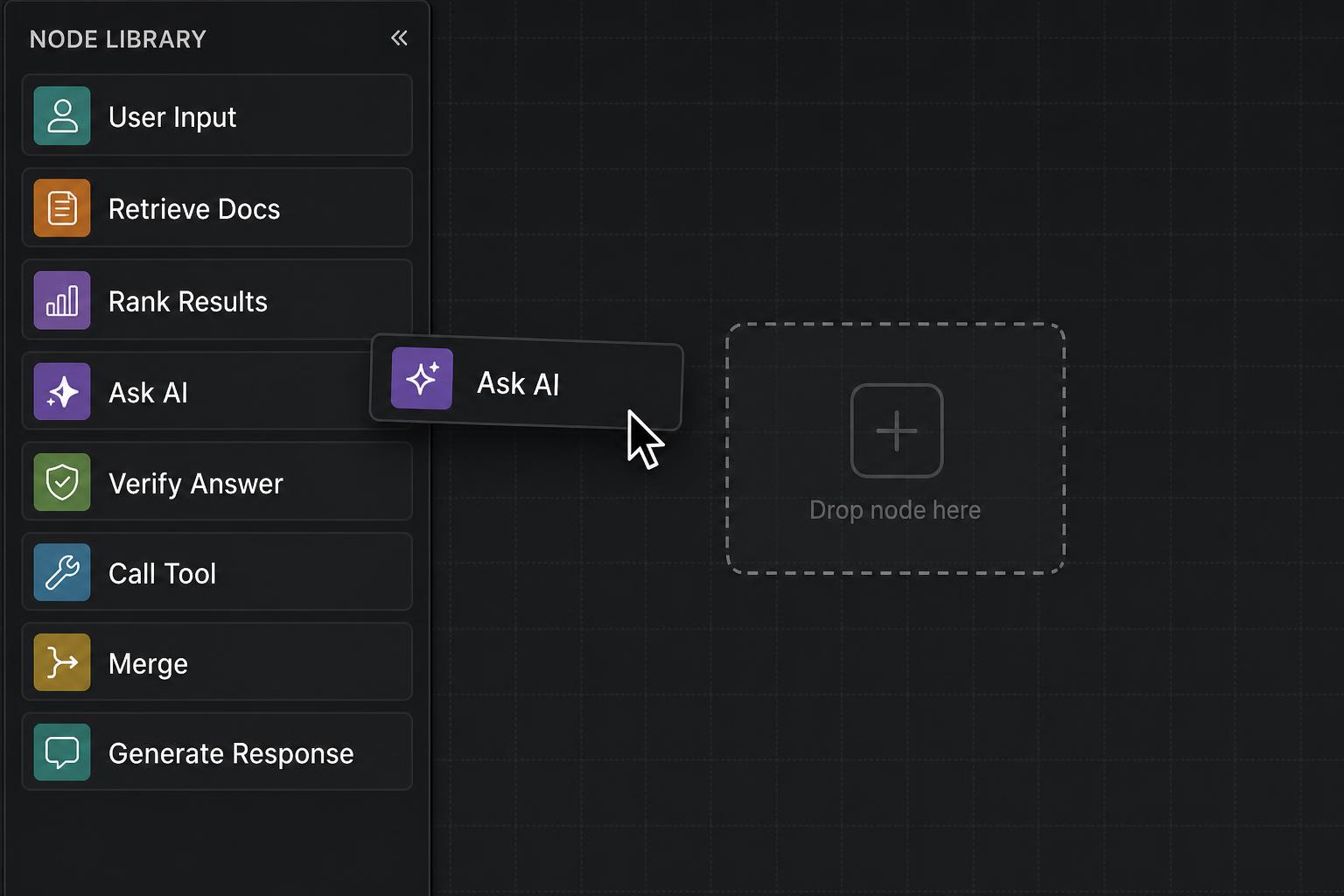
The left sidebar lists every block you can use: user input, retrieval, AI calls, tools, control flow, response. Drag any block onto the canvas - that's a node.
Visual designer for GenAI orchestration
Pyfagor is an infinite canvas for sketching the orchestration layer of GenAI apps. Drag nodes, connect them, export the blueprint.
The left sidebar lists every block you can use: user input, retrieval, AI calls, tools, control flow, response. Drag any block onto the canvas - that's a node.
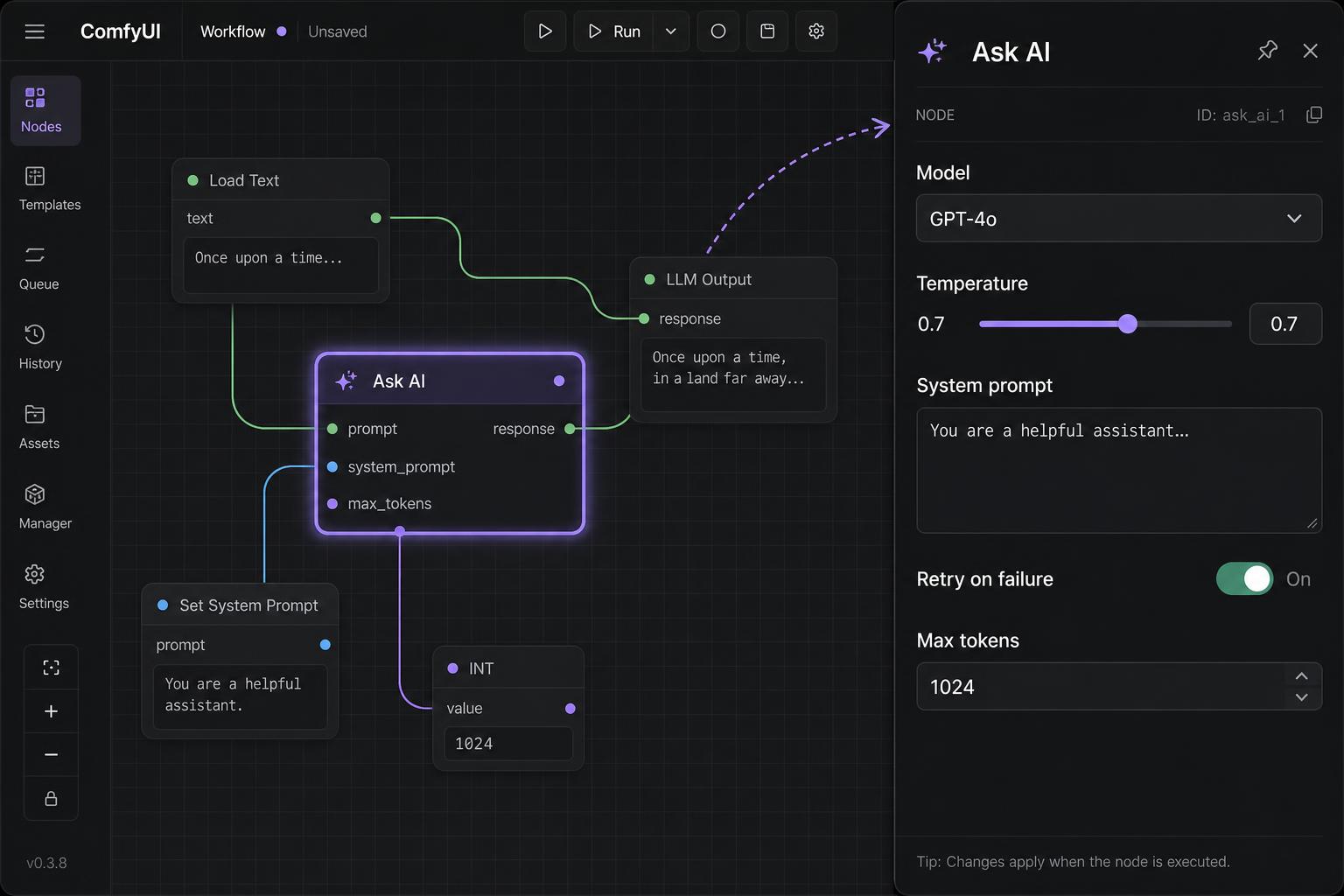
Each node has colored ports. Drag from an output port on one node to an input port on another to wire them up. The curve shows where data flows.
Click a node to open the inspector on the right. Change the prompt, swap the model, set a retry, pick a doc source. The orchestration graph stays clean - config lives in the panel.
Once the orchestration looks the way you want, select Export in the toolbar. You get a clean blueprint of your orchestration graph - ready to share, hand off to your backend, or implement directly.
Worked example · 6 min read
A concrete example of how to use Pyfagor to design a simple orchestration layer - first the orchestration order in plain words, then how you lay it out node by node on the canvas.
The user question never goes straight to the model. It enters the orchestration layer, and the layer owns every step from request to response. For a grounded Q&A over an internal handbook and a policies PDF, the sequence is:
That is the whole orchestration. The rest of this post shows how each step becomes a node on the Pyfagor canvas, and how the wires between them encode the order above.
The entry node
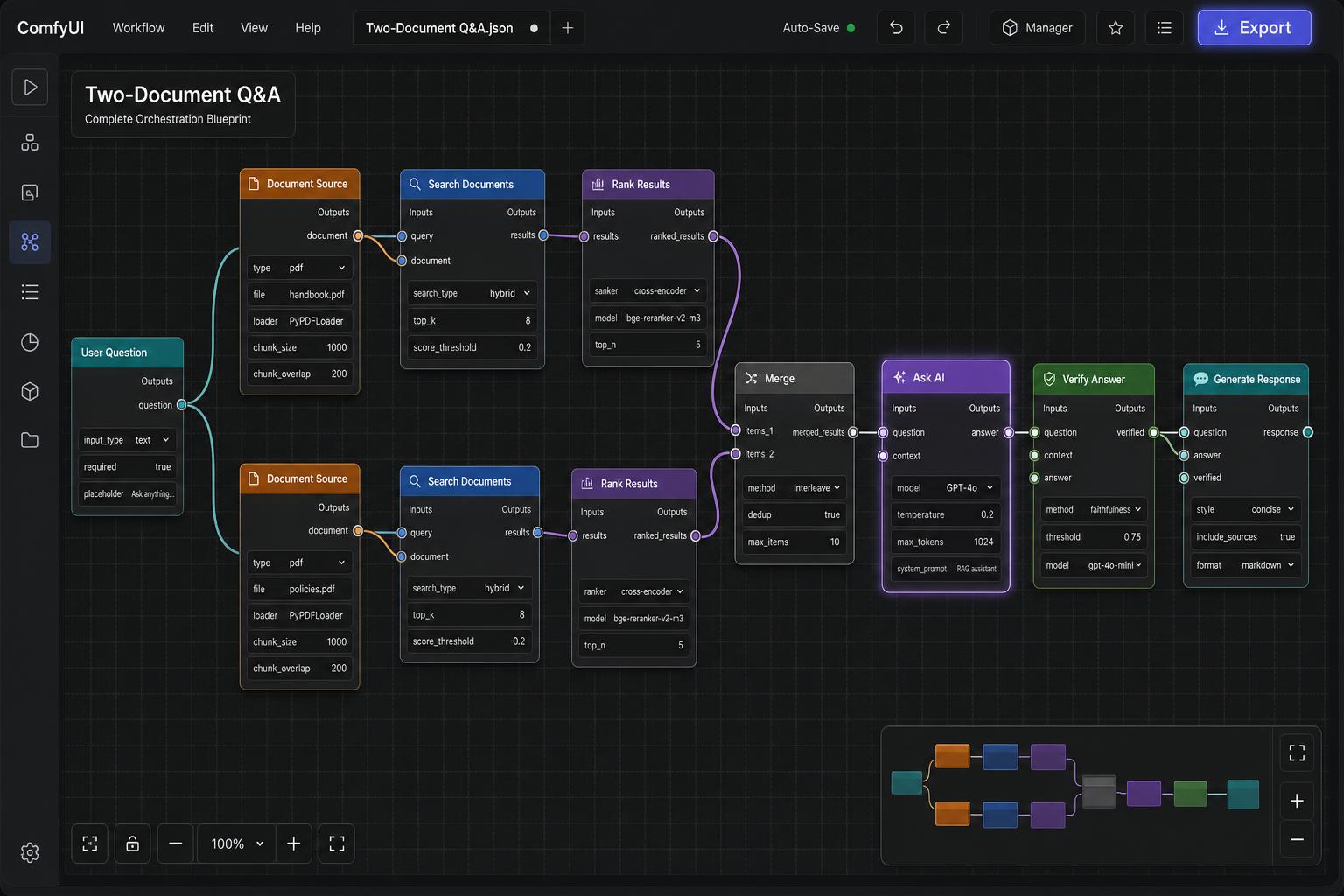
Every orchestration graph needs an entry point. The User Question node is exactly that - it captures the user's raw, natural-language input and broadcasts it to whatever nodes are wired downstream.
Nothing else fires until something lands here. In our example, it sends the same query to two retrieval branches at once, which is what makes the rest of the pipeline parallel by default.
Sources feed parallel searches
The two Document Source nodes - one for handbook.pdf and one for policies.pdf - load, chunk, and index each file. They live side by side on the canvas because they have nothing to do with each other.
From each source, a Search Documents node takes the user's question and pulls the top-k chunks that look most relevant. Both searches happen at the same time - that parallelism is one of the first things you see clearly on the canvas that you'd otherwise have to reason about in code.
Each branch then runs through a Rank Results node. Vector search is good at lexical similarity, but it happily returns passages that sound related and aren't.
The reranker re-orders the chunks by true relevance to the question and trims the tail. This is the cheapest quality improvement in the whole pipeline, and almost always worth the extra hop.
The interesting decisions in a GenAI app aren't in the prompts. They're in how the pieces connect.
Two branches converge
The two ranked lists meet at a Merge node. It interleaves them, removes duplicates, and caps the result at a maximum number of chunks so the prompt stays inside the model's context window.
This is also where you'd enforce balance - making sure one document doesn't drown out the other. The merged context, together with the original question, is then passed to the Ask AI node, with a strict system prompt: answer only from the provided context, and cite the source for every claim.
Check, then ship
A model that's been told to ground its answer will still, sometimes, invent one. The Verify Answer node does a second pass: it checks that every claim in the draft answer can be traced back to a chunk in the merged context.
If something doesn't line up, you can loop back for another attempt, refuse to answer, or flag the response for review. This is the difference between a demo and something you'd actually put in front of users.
Finally, Generate Response takes the verified answer and wraps it in whatever shape your app needs - markdown for a chat UI, plain text for an email, a structured object for an API. It's deliberately the last node, so the formatting concern never leaks back into the model's reasoning.
At runtime, the user sees a short, grounded answer with citations pointing back to the exact pages it came from.
At design time, you get a structured blueprint of the whole orchestration graph - every node, every connection, every config value - that your backend engineer can implement directly, or that you can drop into your own orchestration runtime.
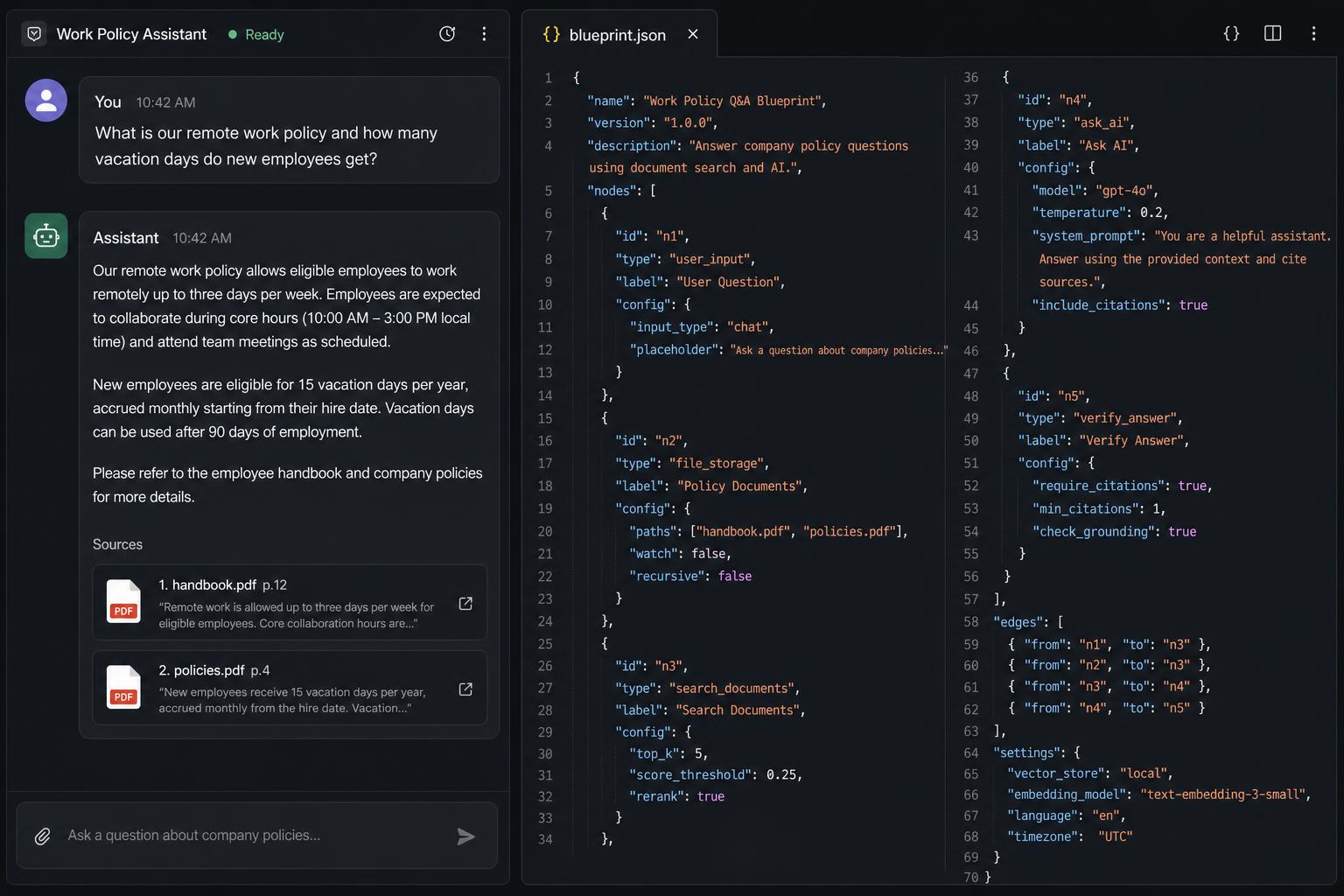
Open the canvas and pick Two-Document Q&A from the starters menu. The exact blueprint described above will load on the canvas, fully wired and ready to edit. Swap the documents, change the model, add a third source - the orchestration stays visible the entire time.